
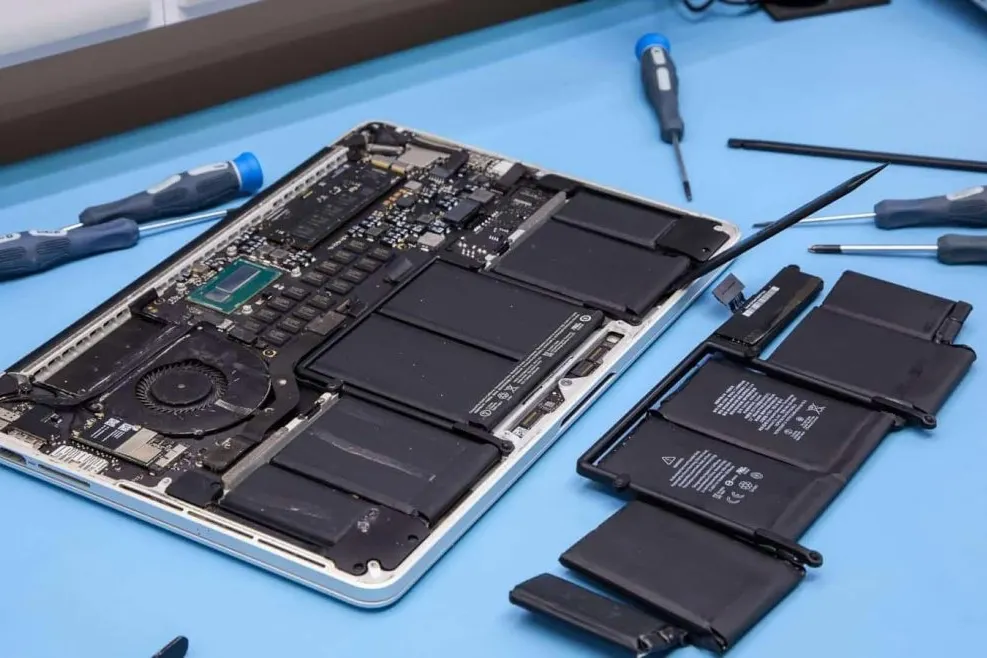
An SSD upgrade sounds like an easy win for an ageing Mac, but a large share of the machines sold since 2018 physically cannot take one, no matter what a listing online promises or how much you are willing to spend. Even among the Macs that can be upgraded, how much you actually notice depends on what was slowing that specific machine down in the first place. This guide goes through it model by model: what qualifies, what does not, what changes day to day, and when the better answer is a new Mac instead.
Upgradable models
Whether a Mac can take a bigger drive comes down to which logic board generation it was built on, and the line falls in an unusual place, not simply old versus new. The MacBook Air from 2012 through 2017 carries a removable, Apple-shaped blade SSD on a small daughter board. The 13 and 15-inch Retina MacBook Pro from 2012 to 2015 uses the same style of removable blade, with its own connector revision for that era. The 2012 non-Retina 13-inch MacBook Pro, the last of the classic unibody line, kept an ordinary 2.5-inch SATA drive that needs no proprietary part at all. On the iMac, 2012 through 2019 covers a serviceable storage bay, either a plain SATA drive or, on some 5K configurations, a PCIe blade slot behind the display, and the Mac mini from 2012 to 2014 opens from its base to a drive and RAM you can reach directly. One exception worth knowing sits inside the Touch Bar generation: the 2016 and 2017 13-inch MacBook Pro built without a Touch Bar kept a removable proprietary drive even though every Touch Bar model from those same two years soldered it down.
Soldered models
Every Apple Silicon Mac, from the first M1 machines in 2020 through the current M4 line, has storage built into the same package as the processor and memory, with no slot, socket or connector to remove. On the Intel side, the 2016 through 2019 Touch Bar MacBook Pro soldered its drive to the board, and every MacBook Air from 2018 onward did the same. The 2018 Mac mini sits in between: its SSD is soldered, but the RAM in that one generation is still socketed and can be upgraded on its own, which is easy to miss and worth checking specifically before we quote a mini. On any of these machines there is no physical way to add capacity after the Mac leaves the factory; we would rather say that plainly at the counter than take on a job we cannot actually deliver.
What you notice
The improvement an SSD upgrade delivers depends on what was limiting the Mac beforehand, and it is not identical across the upgradable list. On an iMac or Mac mini that shipped with a spinning hard drive or a Fusion Drive, swapping to a full SSD removes the single slowest part of the whole machine, and boot time, app launches and Spotlight searches all speed up together, often the biggest change you can make to that particular Mac at any price. On a MacBook that already shipped with a modest SSD, the gain shows up mainly as headroom rather than raw speed: fewer moments where the drive becomes the bottleneck under heavy multitasking, and the breathing room macOS needs for virtual memory and its search index, which suffers on a drive running close to full regardless of how fast that drive is.
Capacity choices up to 2 TB
Across the models we upgrade, capacity runs from a modest step up, useful mainly to give a tired, nearly full drive some room to breathe again, through to 2 TB for a Mac that will keep working for photo or video libraries for years to come. The right choice is less about picking the biggest option in stock and more about what actually fills a drive: a Mac used mainly for documents, browsing and email rarely needs much beyond a mid-size drive even years from now, while one holding a Photos library, ongoing project files or a local backup benefits from sizing up properly the first time, since redoing the swap later means migrating everything all over again. We talk through what is currently on the old drive before recommending a size rather than defaulting to the largest one on the shelf.
Migration
An upgrade quote covers moving everything across, not just fitting the part. We clone the existing macOS installation, applications, files, logins, Wi-Fi passwords and settings from the old drive onto the new one, so the Mac starts up looking exactly as you left it, just with more room and, on an iMac or Mac mini in particular, a noticeably faster boot afterward. Most jobs finish in one to two hours while you wait, since a direct clone runs at the drive's own speed rather than rebuilding everything from a fresh install. If you would rather leave old clutter behind entirely, a clean install of macOS with your files copied back selectively is available instead, and either route, migration or clean install, carries a twelve to eighteen month warranty on the fitted drive.
Upgrade versus new Mac
An SSD upgrade only makes sense while the rest of the machine still has life left in it: a battery that holds a reasonable charge, a healthy logic board, a screen with no developing fault, and a processor that still runs the macOS version you actually want. On a Mac that ticks those boxes, an upgrade from RM400 is nearly always cheaper than replacing the whole machine, and it fixes the specific problem, a full or tired drive, directly rather than as a side effect of buying something new. Where the Mac is old enough that current macOS support has ended, or where a battery, screen or board fault would need attention anyway on top of the drive, we set out both totals side by side so the comparison is honest, rather than putting money into storage on a machine carrying other problems behind it.
When to bring it in
Tell us the exact model, or bring the Mac in and we will identify it at the counter within a minute; About This Mac in the Apple menu names the year even when the model number on the base means nothing to you. We confirm whether your Mac sits on the upgradable list before quoting anything, migrate your data as part of the job, and hand it back tested and fully booted. See the full SSD and RAM upgrade page for prices by model, or check MacBook Air repair and iMac repair if the drive turns out not to be the only thing worth attending to while the machine is already open on the bench.