
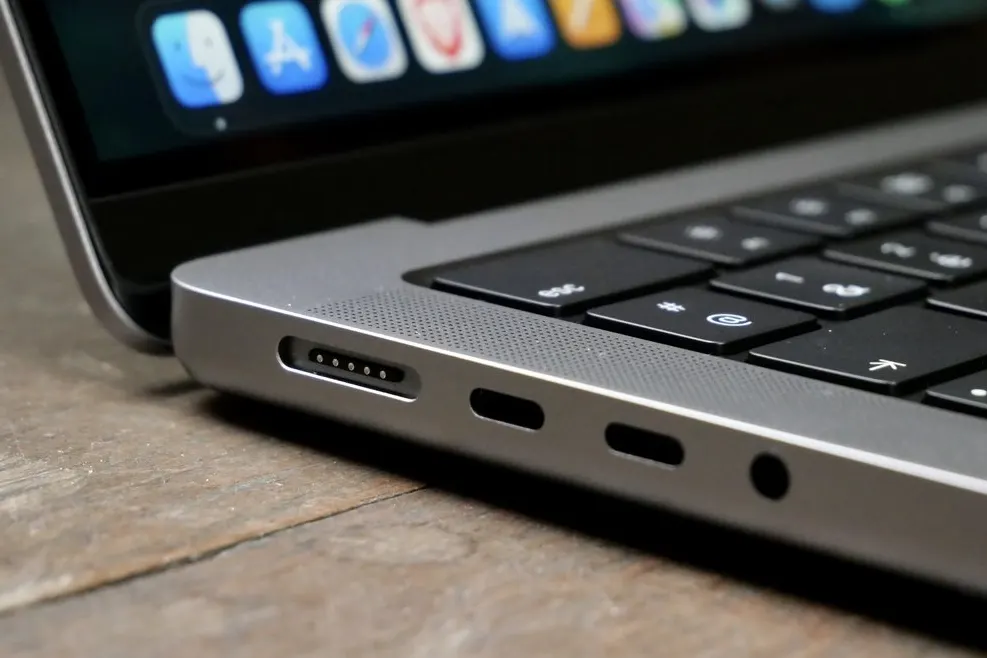
A MacBook that refuses to charge feels like a hardware emergency, but the fault sits somewhere on a short list, and most of that list has nothing to do with the logic board. The cable, the adapter, the port and the battery each fail in their own particular way, and each one leaves a slightly different clue: an LED that never lights, a charge that climbs painfully slowly, or a connection that only holds if you prop the cable at an angle. Work through the checks below in order. By the time you reach the last one you will usually know whether this is a five-minute fix or a job for the bench.
1. Cable
Look at the cable itself before anything else: a kink near either end, a shiny worn patch, or a strand of copper showing through the insulation all point to a cable that has failed, not the Mac. Bend it gently along its length while it is plugged in and watch the charging indicator; a connection that flickers on and off as you move the cable almost always lives in the cable, not the port. If you have a second Apple charging cable, or a friend's, swap it in before you decide anything else is wrong. A third-party USB-C cable rated for data only, with no power-delivery wiring inside, will never charge a MacBook no matter how new it looks, so check the cable's own markings if you are not sure which kind you have.
2. Adapter wattage
Every MacBook needs a minimum wattage to charge while it is being used, not just sitting idle, and a mismatch here is one of the most common reasons a Mac appears to charge slowly or not at all. A compact charger built for a phone will trickle power into the battery at best. Even a genuine Apple adapter can be the wrong one: a 30 W adapter will charge a 16-inch MacBook Pro slowly, or not keep up at all once you start pushing the processor under load, because the Mac is drawing more power than the adapter can supply. Check the wattage printed on the adapter against what your model shipped with, and if you regularly work with the lid open and the Mac under load, use the higher-wattage adapter rated for it.
3. Try another port
On any MacBook with more than one Thunderbolt or USB-C port, charging is not tied to a single designated socket: any of them will charge the Mac, so a fault in one does not mean the machine cannot be charged at all. Try the other ports on the Mac itself, one at a time, with the same cable and adapter. If one specific port refuses to charge while the others work normally, the fault is local to that port's connector rather than the charging circuit as a whole, and it usually stays that way until the port is repaired. If every port behaves the same way, the problem is more likely the cable, the adapter, or something shared further back in the charging path.
4. Clean the port
Pocket lint, dust and fine debris collect inside a USB-C or MagSafe port over months of daily use, and a port packed tightly enough with debris will stop making a clean connection even though nothing inside it is actually broken. Look into the port with a torch at an angle; a grey or fibrous blockage is usually lint, not damage. Power the Mac off first, then clear it gently with a wooden toothpick or a blast of compressed air, working from the outside in. Never probe with anything metal, and never use a liquid cleaner of any kind on a charging port; both risk doing more damage than the lint ever would.
5. Reset SMC (Intel)
The System Management Controller governs how an Intel Mac manages power and charging, and a stuck SMC state can make a perfectly healthy Mac ignore a charger that is working fine. On a 2018 or newer Intel MacBook, shut down, hold Control, Option and Shift on the right side of the keyboard for seven seconds, add the power button and hold all four together for another seven seconds, then release and press power once. On 2017 and older models with a battery that is not user-removable, shut down and hold Shift, Control, Option and power together for ten seconds instead. Apple Silicon Macs have no separate SMC to reset; a normal shutdown, a short wait and a restart does the equivalent job, which is also the first step in our guide to a MacBook that will not turn on.
6. Battery condition
Open System Settings, go to Battery, and check Battery Health. A battery reading Service Recommended can still accept a charge but may hold it poorly, show the level jumping unexpectedly, or shut the Mac down well before it reaches empty. None of that is the same fault as a Mac that will not charge at all, but the two often get reported together, so it is worth ruling battery health in or out early. We cover the warning itself, and what actually changes the reading back to Normal, in our guide to what Service Recommended means. A confirmed battery fault is fixed with a battery replacement from RM280, usually done in 30 to 60 minutes.
7. MagSafe 3 pins
MagSafe 3 charging returned on the 2021 and later 14-inch and 16-inch MacBook Pro, and on the 2022 and later MacBook Air, alongside USB-C, not instead of it. If your Mac has a MagSafe port, check the pins on the connector for bent contacts, a build-up of dust, or a magnet that no longer pulls the plug snugly into place; any of these can stop it charging even though the cable and adapter are both fine. If MagSafe will not hold a charge, plug the same charger's USB-C end, or any USB-C or Thunderbolt cable, directly into one of the Mac's own ports instead; every MacBook with MagSafe also charges perfectly well over USB-C, so this is a useful way to tell a MagSafe-specific fault apart from a wider charging problem.
8. The charging IC
If the cable, adapter, port and battery all check out and the Mac still shows no sign of charging, the fault has usually reached the charging circuitry on the logic board itself, most often the small USB-C power-delivery controller chip that negotiates charging with the adapter. A failed charging IC typically shows as a charger LED that never lights and a level that never moves, no matter which port, cable or adapter you try. This is not something to open the case for yourself: it is component-level micro-soldering work under a microscope, the same category of repair as any other logic board fault, quoted from RM500 with a turnaround of one to three days once the fault is confirmed.
When to bring it in
If checks 1 to 7 have not brought the charger back to life, bring the Mac in with its charger and cable. Diagnosis at the counter is free: we test the cable and adapter, try every port, check the battery and, if needed, measure the charging circuit on the board itself, so you know exactly what has failed before anything is booked. Port and MagSafe repairs are quoted after the free diagnosis and usually finished in 1 to 2 hours; a board-level charging IC fault is quoted separately, in the RM500-and-up logic board range. Either way, nothing is billed until you have seen the fixed price and agreed to it.