
macOS does not hide a failing battery behind a cryptic error code. If Battery settings shows "Service Recommended", the Mac is telling you plainly that the battery has worn beyond a normal range. Here is what the warning actually means, how to check the numbers behind it, and when it is worth booking a replacement rather than waiting it out.
What macOS is telling you
"Service Recommended" appears in System Settings under Battery, in the Battery Health section, when macOS judges that the battery's capacity or overall health has degraded to the point where it can no longer reliably run the Mac the way a healthy battery would. It is not a guess and not a marketing nudge; macOS tracks the battery's behaviour over its whole life and raises the flag once the numbers cross its internal threshold. The same section will tell you if Battery Health is Normal, so it is worth checking even if nothing feels wrong yet. The warning does not mean the Mac is about to fail, and it does not mean the battery must be replaced today. It means the battery is on a downward slope and you should plan around it rather than ignore it.
Check battery health and cycle count
Click the battery icon in System Settings, or go to Apple menu, About This Mac, System Report, and open Power to see the cycle count directly. A cycle counts as one full charge used up, whether that came from a single 0-to-100 charge or several smaller top-ups over a few days. A high cycle count on an older Mac is expected and, on its own, is not a problem; what matters is whether Battery Health still reads Normal or has switched to Service Recommended. If you see the warning alongside a Mac that also runs noticeably hotter under normal use, shuts down at what should be a safe charge level, or loses charge fast on battery alone even doing light work, treat those as supporting evidence, not separate faults. A Mac that only ever runs plugged in, with the warning showing but no other symptom, can usually keep going a while longer before the battery needs attention.
Swollen batteries
A battery nearing end of life can swell as its internal cells degrade, and on a MacBook this shows up before you would ever see a warning on screen: the trackpad lifts slightly at one edge, or clicks unevenly, because the swelling pushes it up from underneath the top case. If your trackpad has started to feel different, stop using the Mac on a soft surface, keep it away from heat, and bring it in. A swollen battery is a safety issue as well as a performance one, and it should not wait for a convenient weekend.
Does it hurt the Mac?
A Service Recommended battery on its own is not dangerous and will not damage the logic board simply by being old. The bigger risk comes from ignoring the physical signs, such as swelling, or from continuing to run the Mac hard on a battery that can no longer hold a steady charge, which can cause unexpected shutdowns at the wrong moment. Unexpected shutdowns are the real hazard, since they can interrupt a save or a system update mid-write. If the warning shows up alongside any physical change to the case or trackpad, that changes the urgency; a warning with no other symptoms usually does not.
Calibration myths
A persistent piece of advice is to run the battery down to zero and fully recharge it to "recalibrate" it and clear the Service Recommended message. This does not work. macOS manages charge calibration in the background on its own, and deliberately deep-cycling a worn battery adds wear without improving the health reading. The warning reflects the battery's actual chemical condition, not a software counter that a full discharge can reset. A related myth is that leaving a MacBook plugged in all day wears the battery out faster; modern MacBooks manage charging in the background to avoid sitting at a full charge for long stretches, so this is not something you need to work around yourself. Once Battery Health shows Service Recommended, the only thing that changes the message back to Normal is a new battery.
Original-grade versus genuine
We fit original-grade batteries that meet the same capacity and safety specification as the part Apple used, and they are what the from-RM280 pricing below is based on, since we keep the common Air and 13" Pro batteries in stock. A genuine Apple battery through the IRP channel is also available on request and is quoted separately once we confirm the exact model. Both options carry a 6 to 12 month warranty on the battery and our workmanship, and either way the Mac is opened and closed at the counter in front of you, not out the back.
What replacement involves
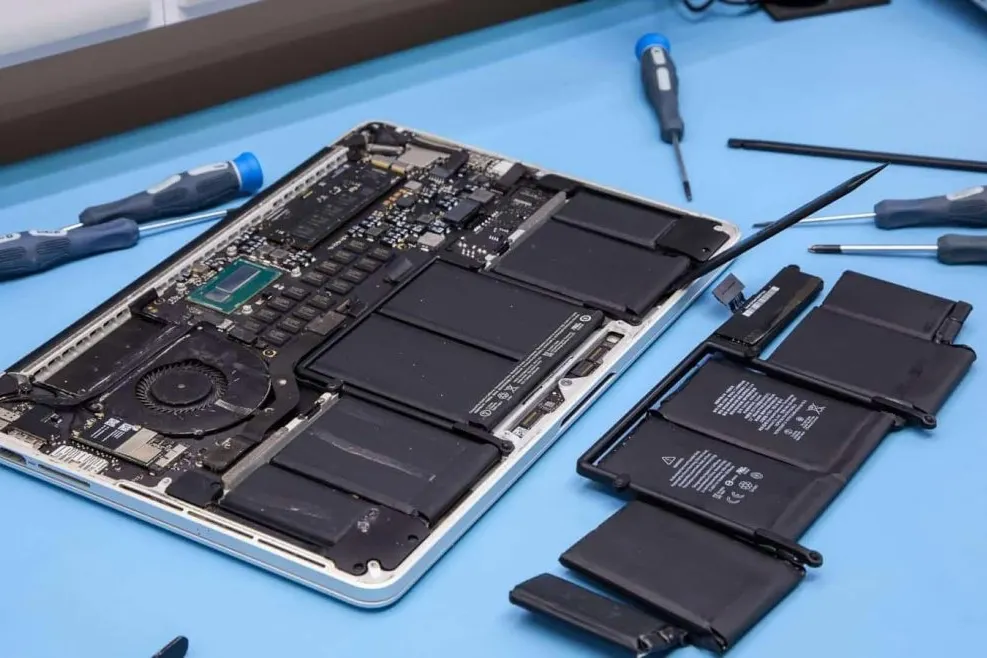
We do not need your password for a battery swap; it is hardware work, not a software job. After the free diagnosis confirms the battery is the cause, we open the base, disconnect the old battery, check the trackpad cable and top case for any damage the swelling may have caused, and fit the replacement. A standard swap on a MacBook Air or 13" Pro takes 30 to 60 minutes. Once it is back together we check that Battery Health reads Normal again and confirm the Mac holds a charge properly before handing it back to you.
When to bring it in
Bring the Mac in if Battery Health shows Service Recommended and you are noticing shorter runtime, unexpected shutdowns, or any change in how the trackpad feels. Diagnosis is free, and battery replacement starts from RM280 with most jobs done in 30 to 60 minutes. If the warning showed up alongside charging problems, such as slow charging or the Mac not charging at all, mention that too; a charging port issue is a separate fault from the battery and can be diagnosed at the same visit.